Skip to content


Getting Started:
Activating Your Matter and Space Account

Follow these steps to successfully activate your Matter and Space (MAS) account. This is the account you will use to log into the app. You will need the activation email, and an Apple or Gmail account you can link to Matter and Space.

If you'd like to use an Apple account, it may be easier to complete this process on your iPhone.


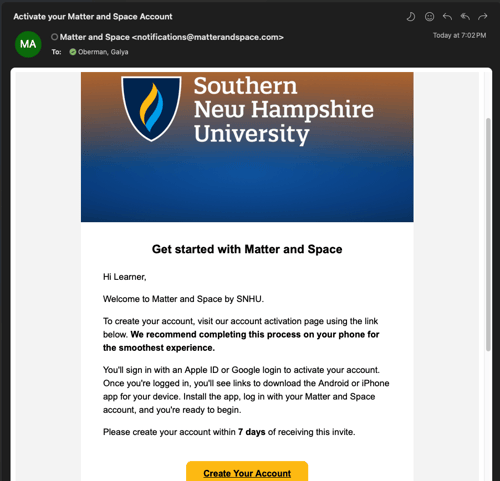
Open your MAS account activation email and access your unique link

Open the email with the subject: “Activate your Matter and Space Account” that was sent to your SNHU email address.

Click the “Create Your Account” button to open your unique activation link. 

Haven’t received your activation email? Check your spam folder, and then reach out to us at support@matterandspace.com for support.

Screenshot of the Activate your Matter and Space account email

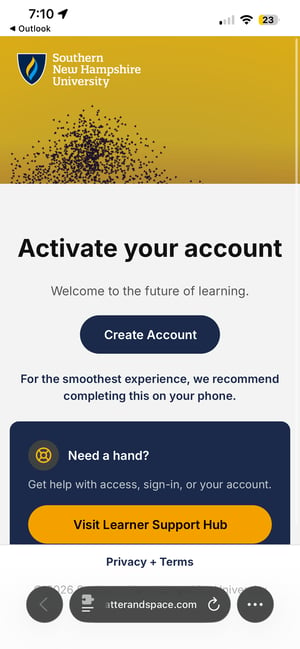
Click “Create Account” on the page that opens

Once the page opens, click "Create Account" to start the activation process.

Screenshot of Activate your Account page

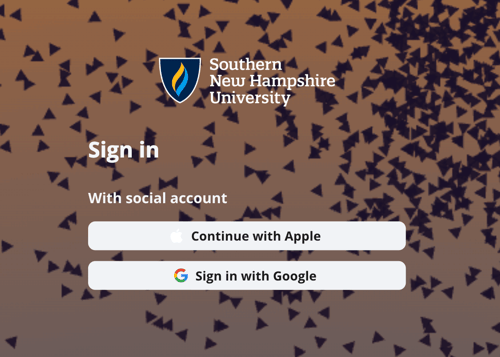
Activate your account by linking an Apple or Google login to Matter and Space 

You'll be brought to a page that has two options - Continue with Apple, or Sign in with Google. You will link an existing Apple or Google account you have as your MAS login. Pick which one you want to link, and follow the linking process.

This allows you to use an existing account you have as your MAS login. 

Note: We don't receive data from these accounts other than linking the login credentials.

Screenshot of Google or Apple login page

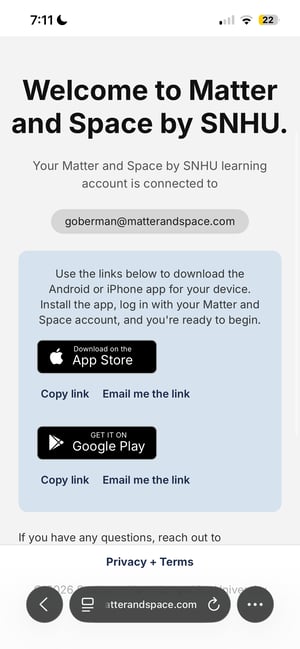
Once you see the “Welcome to Matter and Space by SNHU.” page, the process is complete! 

You have successfully linked your Apple or Google email to activate your MAS account if you see this page. The email address you see on this page is what you will use to log into the app. 

You will receive an email confirming the email address you linked for future reference.

Screenshot of welcome to Matter and Space by SNHU successful activation page

Head to the Download TestFlight page for instructions to complete your next step.