Setting up your Fitbit from Matter and Space
Follow these instructions to set up your Fitbit wearable from Matter and Space for use during your pilot experience. See here for the Fitbit Inspire 3 user manual.
iPhones will use Apple Health (Fitbit <> Google Health <> Apple Health) to connect the Fitbit to the Matter and Space app.
Androids will use Google Health (Fitbit <> Google Health) to connect the Fitbit to the Matter and Space app.
Fitbit Setup: iPhone
TABLE OF CONTENTS
1) Unboxing & Charging
2) App Setup: Google Health
3) Connect Google Health to Apple Health
4) Connecting to the Matter and Space app
Unboxing & Charging
Open the Fitbit Inspire 3 box. Inside, you will find the Fitbit, the Fitbit charger, and an additional longer watch strap.
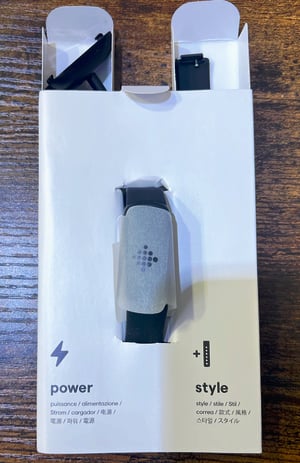
After unboxing the Fitbit, plug it in and charge it to 100%. After it's charged fully, leave it plugged in and near your phone while you proceed through the next steps.
App Setup: Google Health
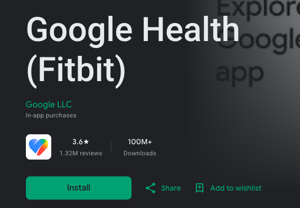
Install the Google Health app
Download the Google Health app onto your phone. The Google Health app serves as the main connection app for the Fitbit, where you manage your account, device settings, and see your data.

Sign in to the Google Health app
Once the app is installed, open the Google Health app. When you open it for the first time, it will ask you to log in with a Google account or create a new one. Complete this process.
Complete account setup
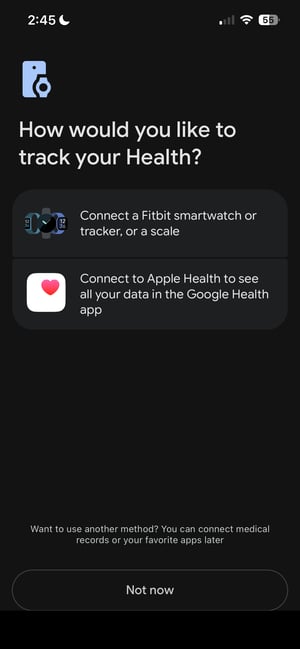
After signing in, if you're creating a new account you'll complete your account setup by entering profile details and reviewing agreements from Google. Finally, you will arrive on a screen that says, "How would you like to track your health?"
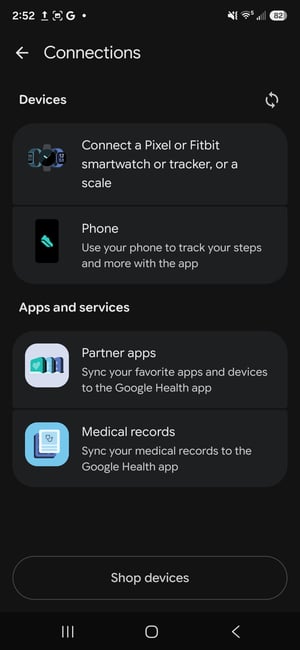
If you are a returning Google Health user, you can get here by clicking the "Connections" icon in the top left from the homepage.
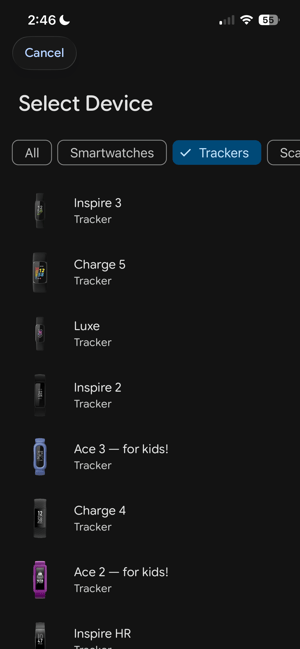
Select the "Connect a Fitbit smartwatch, or tracker, or a scale" option.

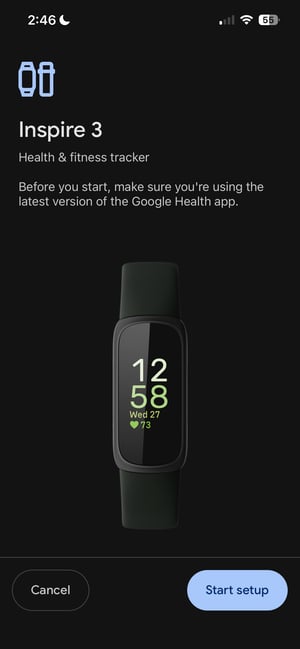
Set up your wearable


Connect your wearable to your Google Health account
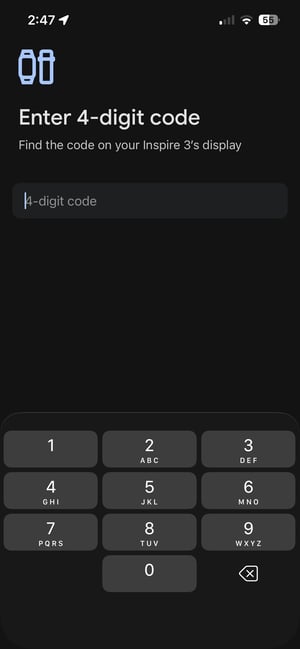
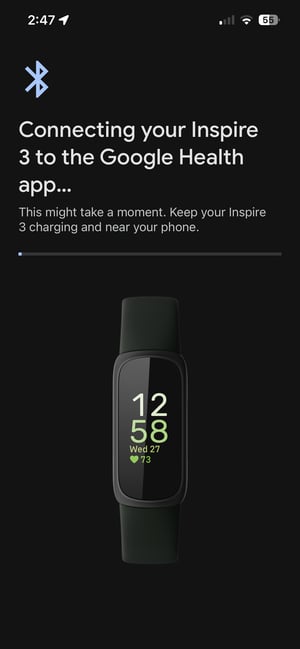
A four-digit code will appear on the Fitbit Inspire 3's display. Review the code and then enter it on the screen. Once the code is entered, your Fitbit will begin to connect to the Google Health app. Keep the Fitbit plugged into its charger and close to your phone.


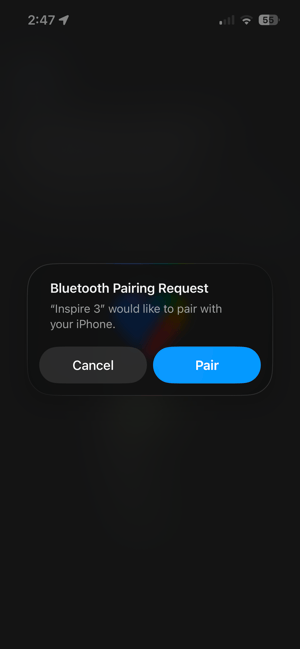
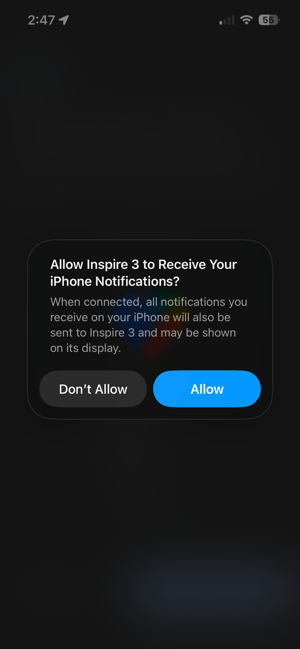
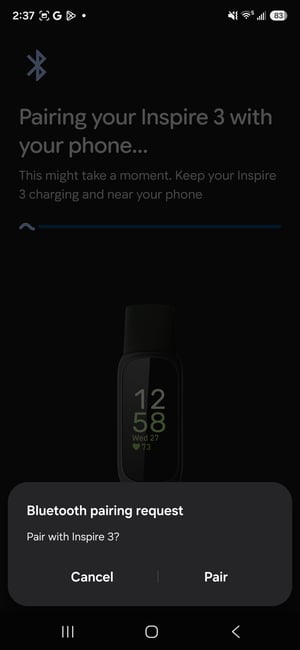
Once the process is almost done, you'll receive a pop-up for a Bluetooth pairing request. Select "Pair" and then, on the second dialog, select the option you prefer for notifications.


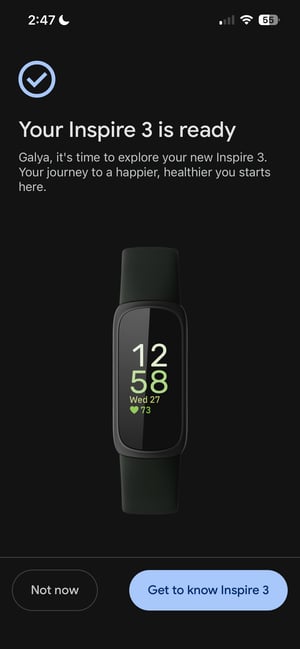
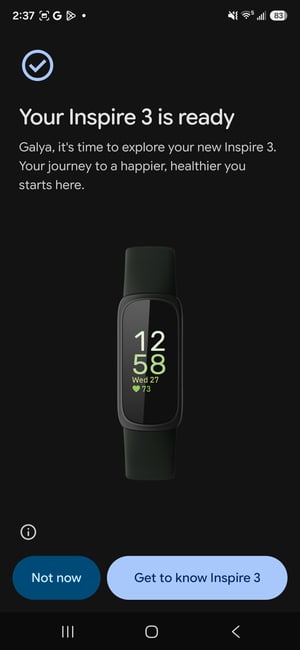
You'll land on a screen that says, "Your Fitbit Inspire 3 is ready." Your connection was successful if you see this screen.
Select "Get to Know Inspire 3" to go through a tutorial about how to use the device and best take care of it.
You might be offered the ability to sign up for Google Health Premium. This is not required for the pilot, but it is up to you if you would like to subscribe.

Connecting Google Health to Apple Health
Download the Apple Health app
Ensure the Apple Health app is downloaded onto your phone. The Apple Health app is usually installed by default on iPhones.
The Apple Health app is the connection point for the Matter and Space app to your Fitbit.


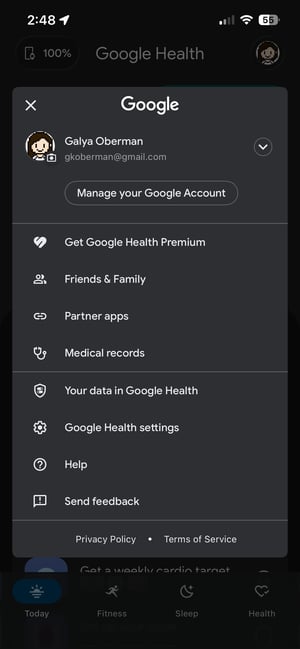
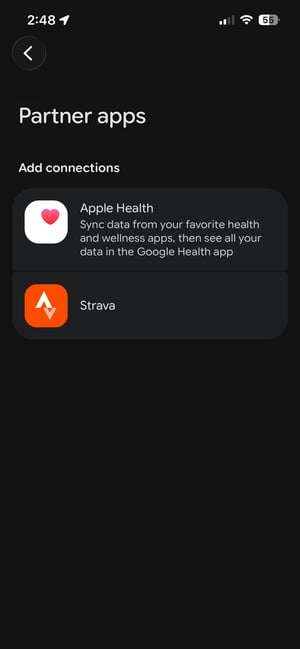
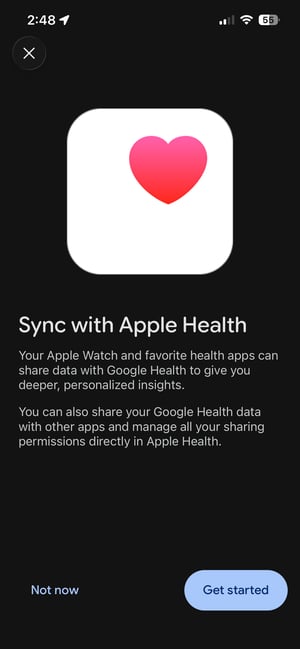
From the Partner Apps menu, click "Apple Health". On the "Sync with Apple Health" page, press the "Get Started' button.
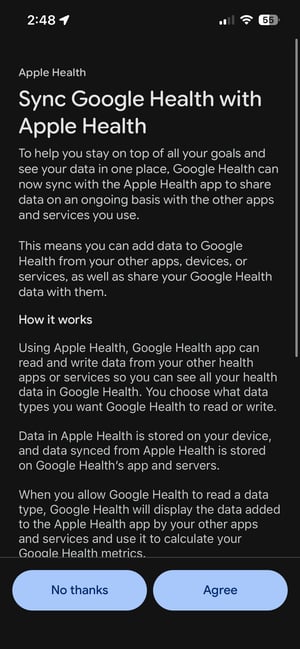
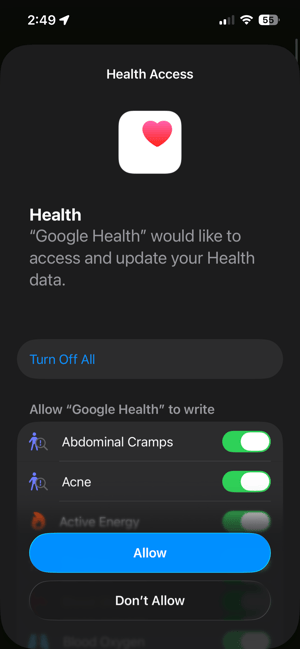
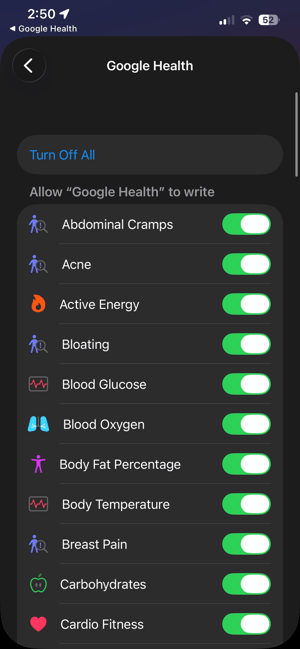
Agree to the syncing, and then select all the data that you would like to pass from Google Health into Apple Health.
We recommend clicking "Allow" for all data, because this establishes the full connection between Google and Apple Health. You can always adjust what data you share with the Matter and Space app when you connect to it later.


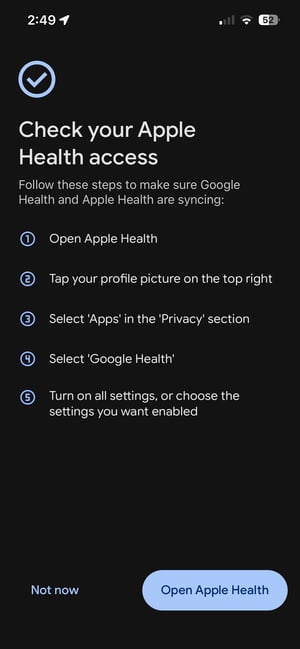
Confirm the Connection was Successful
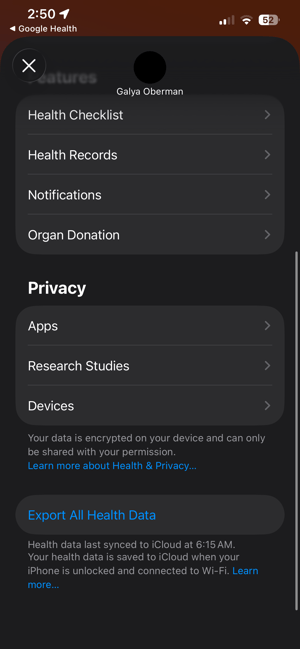
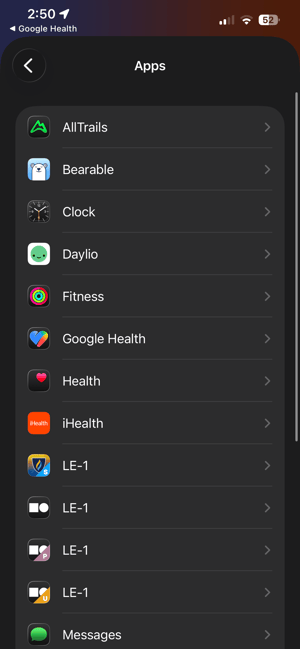
In order to confirm the Google Health to Apple Health connection was successful, click the button and follow the steps on the screen to open Apple Health, tap your profile picture on the top right, select Apps in the Privacy section, and select Google Health. Turn on all settings, or choose the settings you want enabled.


Connecting to the Matter and Space app
Connect During Onboarding
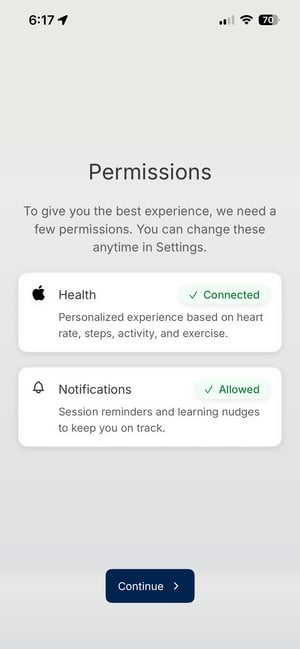
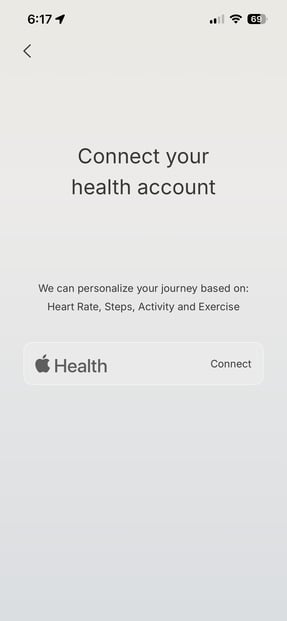
If you've completed the steps above before you access the app for the first time and begin onboarding, you'll have the opportunity to connect to Apple Health during the onboarding session.
Don't worry if you're not ready at that point, you have the option to connect it after onboarding. Continue to the next section for instructions.

Connecting After Onboarding
Navigate to the Settings menu from the Homepage
After completing in-app onboarding, scroll down on the Homepage to access the Settings menu. If you don't see it, scroll down.

Select Health Accounts > Apple Health > Connect
Click Connect to begin the linking process. 
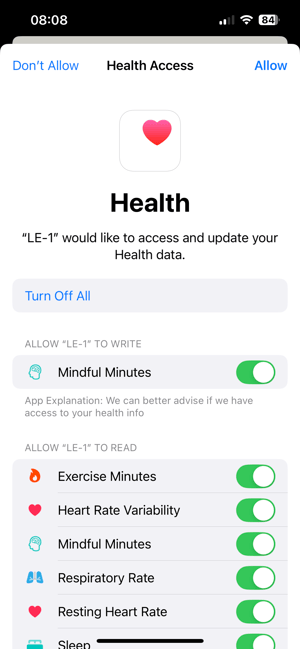
Grant permissions to your Health Data
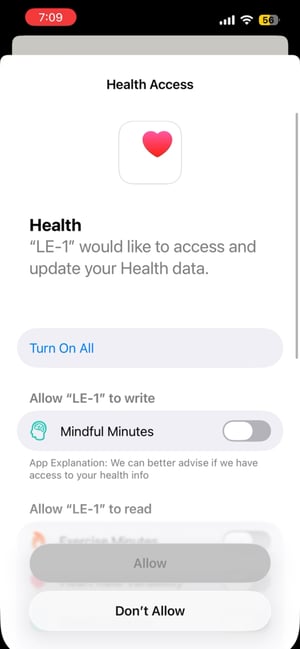
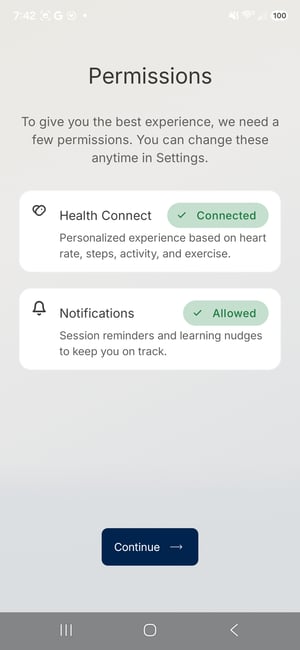
On the Health Access page that pops up, enable the data permissions you'd like to grant to the LE-1 app.
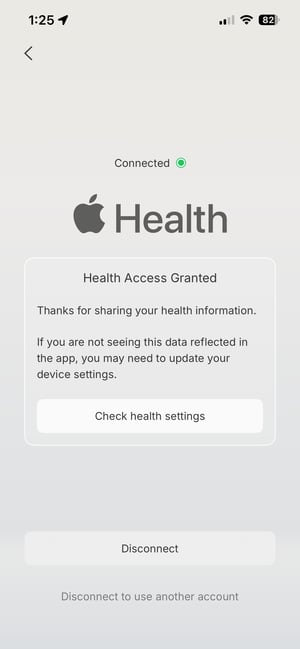
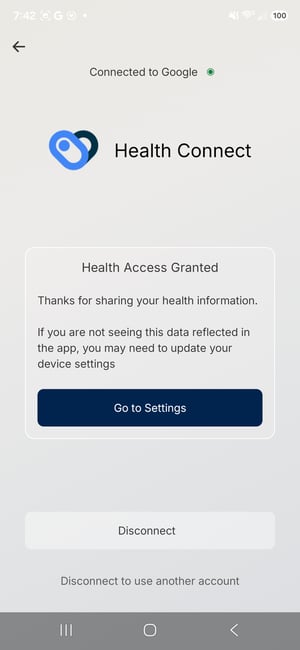
You'll see the "Connected" page once you've granted permissions.
You can always edit the permissions you grant by clicking "Check health settings" on the Health Accounts page, or by going to the Apple Health app > Sharing > Apps > LE-1.
.

Fitbit Setup: Android
TABLE OF CONTENTS
1) Unboxing & Charging
2) App Setup: Google Health
3) Connecting to the Matter and Space app
Unboxing & Charging
Open the Fitbit Inspire 3 box. Inside, you will find the Fitbit, the Fitbit charger, and an additional longer watch strap.

After unboxing the Fitbit, plug it in and charge it to 100%. After it's charged fully, leave it plugged in and near your phone while you proceed through the next steps.
App Setup: Google Health
Install the Google Health app
Download the Google Health app onto your phone. The Google Health app serves as the main connection app for the Fitbit, where you manage your account, device settings, and see your data.

Sign in to the Google Health app
Once the app is installed, open the Google Health app. When you open it for the first time, it will ask you to log in with a Google account. Complete this process.
Complete account setup
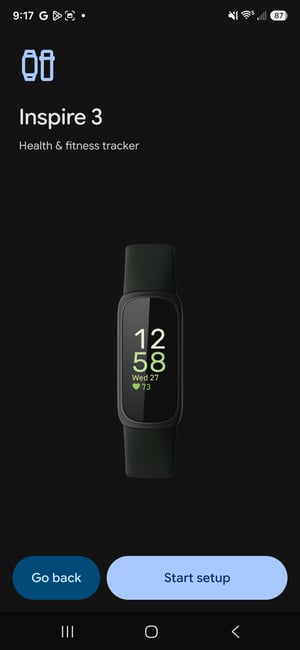
After signing in, if you're creating a new account you'll complete your account setup by entering profile details and reviewing agreements from Google. Finally, on the connections screen, select the "Connect a Fitbit smartwatch, or tracker, or a scale" option.
If you are a returning Google Health user, you can get here by clicking the "Connections" icon in the top left from the homepage. Select the "Connect a Fitbit smartwatch, or tracker, or a scale" option.
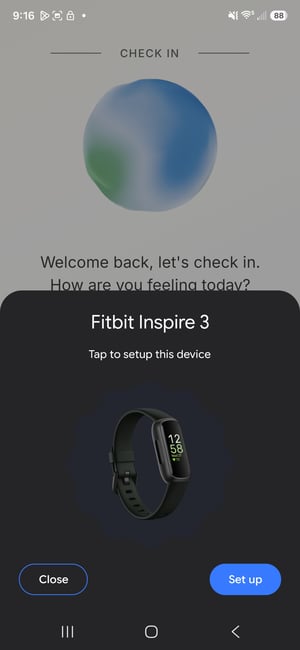
Your phone may also recognize the Fitbit automatically and pop up a window asking if you'd like to set it up.


Set up your wearable


Connect your wearable to your Google Health account
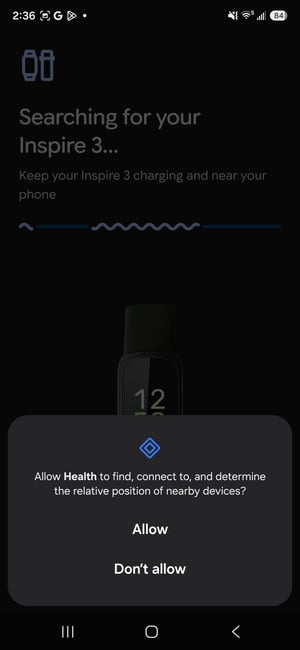
When asked, enable your phone to search for nearby devices by pressing "Allow".
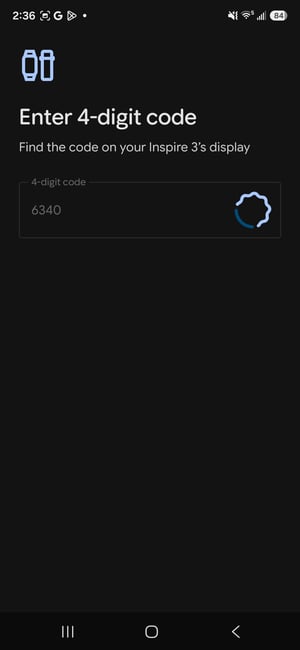
A four-digit code will appear on the Fitbit Inspire 3's display. Review the code and then enter it on the screen. Once the code is entered, your Fitbit will begin to connect to the Google Health app. Keep the Fitbit plugged into its charger and close to your phone.


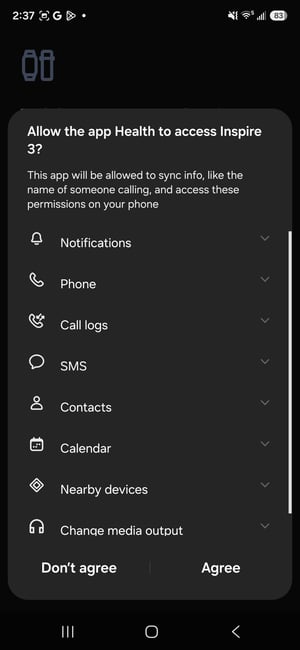
Once the process is almost done, you'll receive a pop-up for a Bluetooth pairing request. Select "Pair" and then, on the following pages, select the options you prefer for setup of access to your phone and location. Location enablement may be required for best function for the Fitbit.


You'll land on a screen that says, "Your Fitbit Inspire 3 is ready." Your connection was successful if you see this screen.
Select "Get to Know Inspire 3" to go through a tutorial about how to use the device and best take care of it.
You might be offered the ability to sign up for Google Health Premium. This is not required for the pilot, but it is up to you if you would like to subscribe.

Connecting to the Matter and Space app
Connect During Onboarding
If you've completed the steps above before you access the app for the first time and begin onboarding, you'll have the opportunity to connect to Apple Health during the onboarding session.
Don't worry if you're not ready at that point, you have the option to connect it after onboarding. Continue to the next section for instructions.

Connecting After Onboarding
Navigate to the Settings menu from the Homepage
After completing in-app onboarding, scroll down on the Homepage to access the Settings menu. If you don't see it, scroll down.
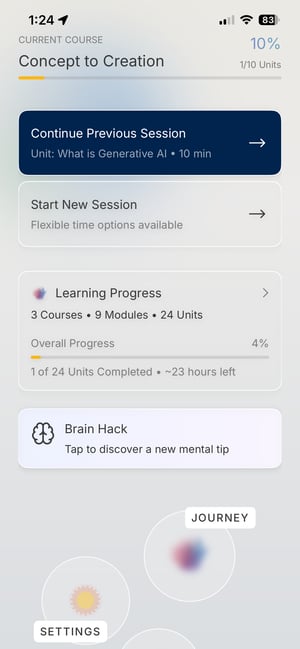
Select Health Accounts > Google Health > Add
Click Add to begin the linking process. 
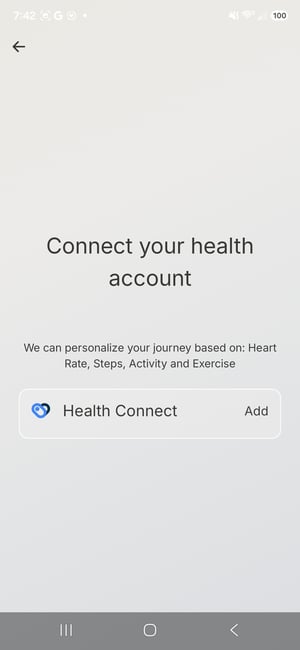
Grant permissions to your Health Data
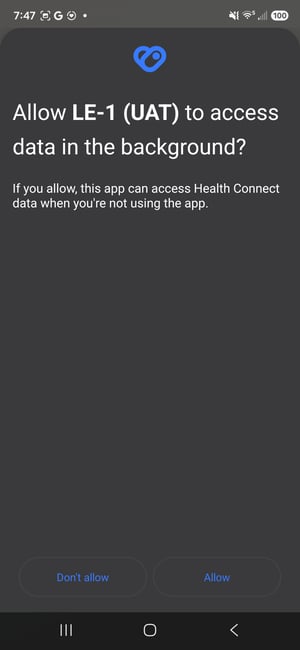
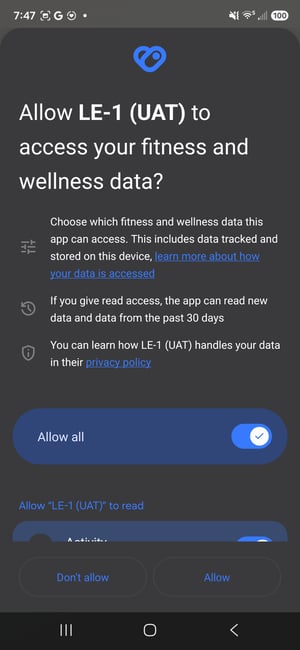
On the Allow Access page that pops up, enable the data permissions you'd like to grant to the LE-1 app. Press Allow to enable access to data as well as background access.
You'll see the "Connected" page once you've granted permissions.
You can always edit the permissions you grant by clicking "Check health settings" on the Health Accounts page in the LE-1 app.
.