
Skip to content


Getting Started:
Connect Your Wearable

After completing in-app onboarding, you'll have the opportunity to connect your wearable to the LE-1 app. When you connect your wearable, the app can offer more personalized insights about your wellbeing. 

You can connect either an Apple Health or a Fitbit account. Instructions are also included on how to check your connection is successful.


Connect to Apple Health

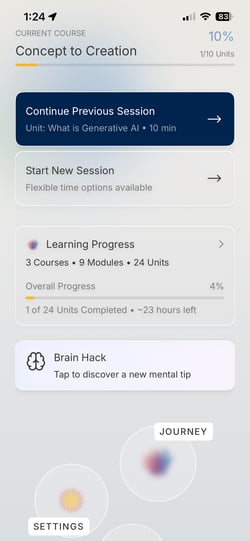
Navigate to the Settings menu from the Homepage

After completing in-app onboarding, scroll down on the Homepage to access the Settings menu. If you don't see it, scroll down.
IMG_3721

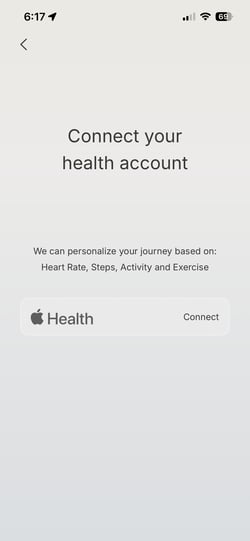
Select Health Accounts > Apple Health > Connect

Click Connect to begin the linking process. 
IMG_3722

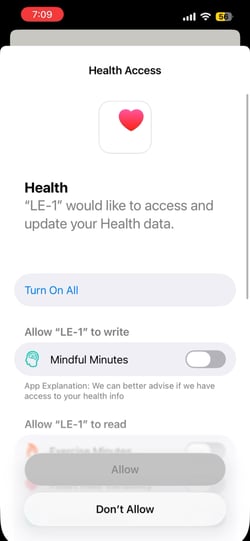
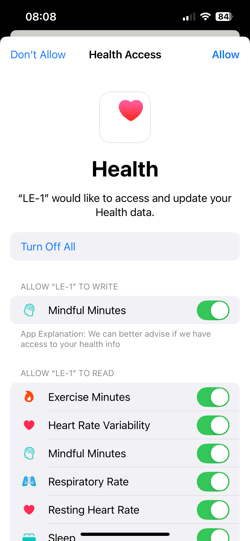
Grant permissions to your Health Data

On the Health Access page that pops up, enable the data permissions you'd like to grant to the LE-1 app.

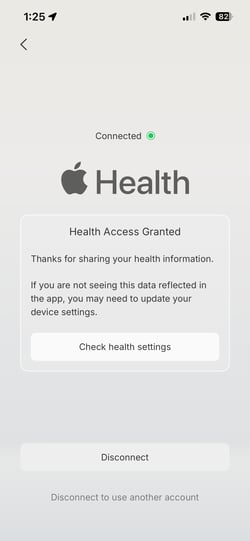
You'll see the "Connected" page once you've granted permissions.

You can always edit the permissions you grant by clicking "Check health settings" on the Health Accounts page, or by going to the Apple Health app > Sharing > Apps > LE-1.
IMG_3724.     IMG_3723


Next Steps: Start learning + Submit bugs & feedback

After completing all the setup steps, start learning at any time from the app Homepage by pressing "Start New Session". 

As you complete your learning and experience the app, submit any bugs and feedback to help us learn, too.


Connect to Fitbit

Navigate to the Settings menu from the Homepage

After completing in-app onboarding, scroll down on the Homepage to access the Settings menu. If you don't see it, scroll down.

IMG_3721


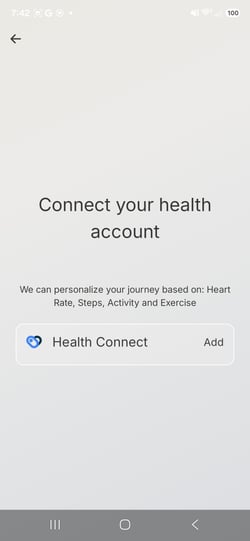
Select Health Accounts > Fitbit > Connect

Click Connect to begin the linking process. 
IMG_3722

Log in with your Google account, or Fitbit account email and password 

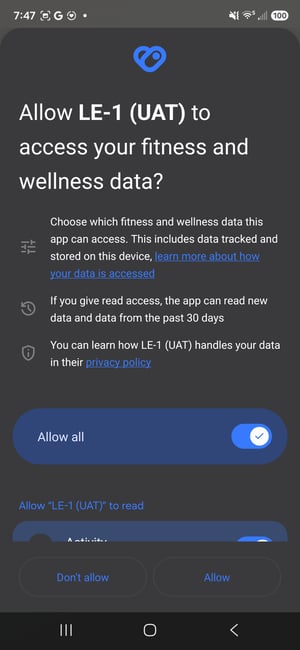
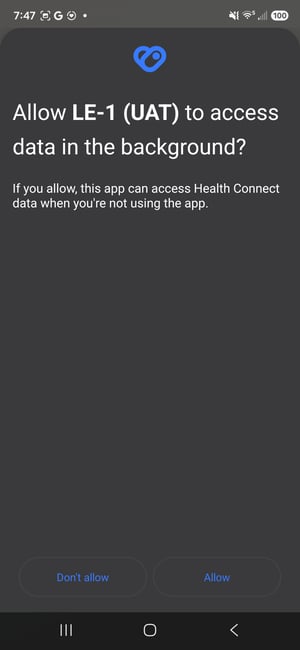
After logging into your Google Health or Fitbit account, enable the data permissions you'd like to grant to the LE-1 app.

You'll see the "Connected" page once you've granted permissions.

Note: The Fitbit app is now the Google Health app. You can always edit the permissions you grant through your Google Health account.


Next Steps: Start learning + Submit bugs & feedback

After completing all the setup steps, start learning at any time from the app Homepage by pressing "Start New Session". 

As you complete your learning and experience the app, submit any bugs and feedback to help us learn, too.

Check Your Wearable Connection

Apple Watch

In the LE-1 app, navigate to Settings > Health Accounts and confirm the wearable shows as connected.

Click the "Check health settings" button to open the Apple Health app. 

IMG_3723


On the "Sharing" tab of the Apple Health app, scroll down to find the Apps section and tap to open.

Locate "LE-1" in your list, and tap to open.


Check that the toggles for the data you'd like to share are green. 


Fitbit

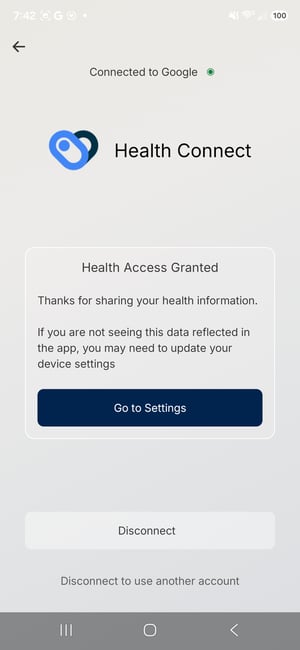
In the LE-1 app, navigate to Settings > Health Accounts and confirm the wearable shows as connected.


To check the data being shared, open the Google Health / Fitbit app on your phone, and log in to your account if needed. Tap your profile picture or initial in the top corner of the Today screen.

Note: The Fitbit app is now the Google Health app.  

Tap the "Apps and services" menu to open it, then locate the "Matter and Space (prod)" app. Tap to open.

Note: While the Matter and Space app's name on your phone is LE-1, it is listed as "Matter and Space (prod)" in Google Health.


On the new page that opens, find the "Matter and Space (prod)" section and click to expand it. Check that the data listed matches what you enabled access to previously. 

Note: The five data points you see listed in the screenshot are the comprehensive list of what you can share.


If you'd like to adjust what data is shared, the easiest way is to click "Disconnect" on this screen, then "Confirm and disconnect" on the following screen. Then, head back to the LE-1 app Settings > Health Accounts to re-enable the connection