
A summative assessment is the project you complete at the end of a course. You do the work outside the app, using the AI tools and techniques you practiced, then upload it as one PDF. Your work is evaluated against a detailed rubric, and you get a Competency Level and feedback on each part of the rubric. L.E. is with you before you start and after you get your result.
Which courses have a summative assessment?
In the October 2026 Generative AI pilot, Courses 2 to 5 each end with one summative assessment. Course 1, Concept to Creation, doesn’t have one.
|
Course |
Weeks |
Your assessment |
What you submit |
|---|---|---|---|
|
2. Fundamentals to Future Proofing |
3–4 |
Fundamentals to Future Ready: Your Professional AI Portfolio |
A Future-Ready Portfolio: a LinkedIn profile rewrite and one reflection retargeted for three audiences, with your prompts and iterations |
|
3. Ideas to Innovation |
5–6 |
Ideas to Innovation: Your AI-Assisted Final Project |
A record of solving a real problem from your own work with AI, from system prompt to pitch, titled with your project name |
|
4. Innovation to Customization |
7–8 |
Innovation to Customization: Build a Custom Claude Skill |
A Claude Skill for a recurring task from your own work, with its instructions, tests and surrounding workflow, titled with your Skill’s name |
|
5. Workflows to Transformation |
9–10 |
Workflows to Transformation: Specialize and Look Ahead |
One specialization track (an interview guide, a lesson plan or a build log), with your tool choices and where a human stays in the loop |
You’ll see the full instructions for your assessment when you start it with L.E.
Why do I complete a summative assessment?It’s where you pull the whole course together and show you can apply it to real work. Throughout each course, the practice activities at the end of every unit and module help you build and check your skills one topic at a time. The summative assessment looks at the bigger picture: can you combine those skills to produce something useful, on your own, from start to finish?
Each assessment is built around the course’s learning objectives, and every task maps to skills you practiced in its units. Most assessments ask you to work on something from your own job, so what you make is something you can actually keep using.
Your result is a Competency Level that shows where your skills are today and where to grow next. It’s for your learning. It isn’t a grade on a transcript, a credential, a certificate or a badge.
Does my competency level affect my progress?
No. You’ll need to submit your assessment and wait for your result before you move on, but you can continue to the next course whatever level you receive.
How does it work?There are seven steps, from your last learning session to your course-complete screen.
- Finish the course. When you complete the final session of the course’s last module, your home screen shows Start Assessment.
- Go through the assessment brief with L.E. L.E. walks you through what the assessment asks for, how it’s scored and how to submit. At the end, tap Continue to confirm you’re done. You need to do this before you can upload.
- Do the work outside the app. Take as much time as you need. Use the AI tools from the course and put everything into one PDF.
- Come back with questions if you need to. Until you upload, your home screen shows Chat with L.E., where you can ask L.E. to walk you through any part of the assessment brief again.
- Upload your PDF. Tap Upload your assessment on your home screen, choose your file and tap Submit assessment.
- Get your result. Grading usually takes about 5 minutes. Your home screen shows Your assessment is graded when it’s ready. Tap it to see your Competency Level and a summary of your feedback.
- Talk it through, then move on. Tap Get detailed feedback for an optional walk-through with L.E., or tap Complete course to skip it. Either way, you’ll finish on your course-complete screen.
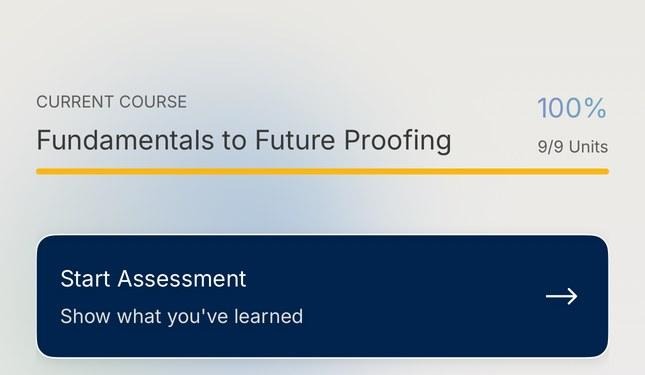
When you finish a course, your home screen shows Start Assessment.
For more information, see the other articles on Assessment in the Knowledge Base!