
What we’d love you to do is still move through the assessment steps in the app, using a blank document. Seeing learners go through the briefing, upload, result and course-complete screens tells us whether the experience works, and that helps us a lot.
It only takes a few minutes. Here’s how.
Download the blank assessment PDF
How do I move through the assessment quickly?- Download the blank PDF (link above). The same file works for every course. Any blank PDF works too.
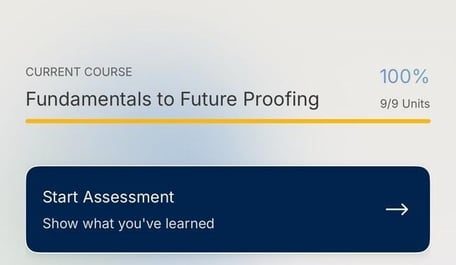
- Tap Start Assessment. You’ll see it on your home screen when you finish the course.
- Tell L.E. you’re ready to submit. You don’t need to go through the instructions. Just type “I’m ready to submit. Please exit.” and tap Continue. This unlocks the upload.
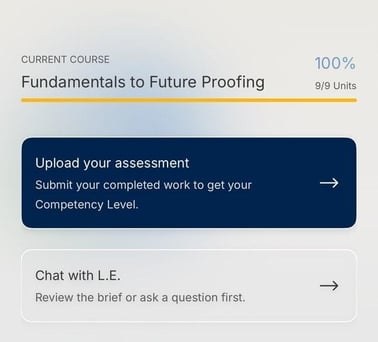
- Upload the blank PDF. Back on your home screen, tap Upload your assessment. Then tap Choose file, pick the blank PDF and tap Submit assessment.
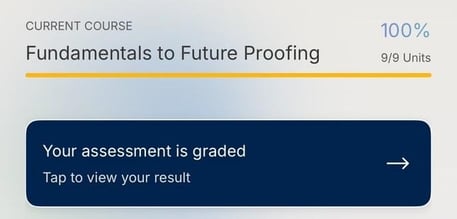
- Check your result. After about 5 minutes, your home screen shows Your assessment is graded. Tap it to see your result.
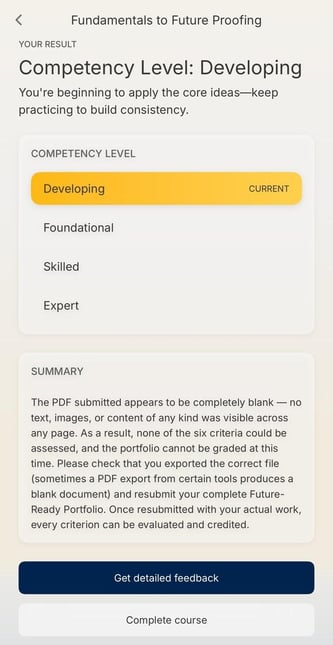
- Tap Complete course. Your result will show Developing. That’s expected (see below). Tap Complete course at the bottom of the screen.
- You’re done! You’ll see your course-complete screen, and you’re ready for the next course.
Developing. That’s expected. It only means there was no work to assess, and it isn’t a reflection of your skills. It doesn’t affect your progress, and you’ll move on to the next course as usual.
My result says my PDF is blank and asks me to resubmit. Do I need to?No. Because the file is blank, your results summary will say there was nothing to grade and suggest you resubmit. You can ignore this. There’s nothing else you need to do. Just tap Complete course.
What if I tap Get detailed feedback?That’s fine. L.E. will let you know there was nothing to assess and suggest contacting the MAS team. You don’t need to contact us about a blank submission. Tap Continue and you’ll go to your course-complete screen.
Why do I need to upload anything at all?The app moves you to the next course once your assessment has been graded. Uploading the blank PDF is the quickest way to get there. It also lets us test the whole experience from start to finish.
Can I still complete the assessment for real?Yes, and you’re very welcome to. Everything else in this article still applies, including the rubric for each course. There’s one submission per assessment, so decide which option you want before you upload.
What if I was taken back to my Course 2 assessment?The same steps work there too. Type “I’m ready to submit. Please exit.”, upload the blank PDF, and tap Complete course.
Something didn’t work. What should I do?Contact the MAS team at support@matterandspace.com and tell them which step you were on.