
|
Requirement |
Detail |
|---|---|
|
Format |
PDF only |
|
Number of files |
One combined document |
|
Maximum file size |
4.5 MB |
|
Links |
Welcome as optional extras at the end, but not reviewed or graded |
Why does everything have to be in one PDF?
Your assessment is evaluated as a single document against the rubric, and only what’s inside it counts. Anything you want credit for, such as your prompts, AI outputs, screenshots or reflections, has to appear as text or images in the PDF. Links, separate files and text typed anywhere else aren’t graded.
How do I upload it?
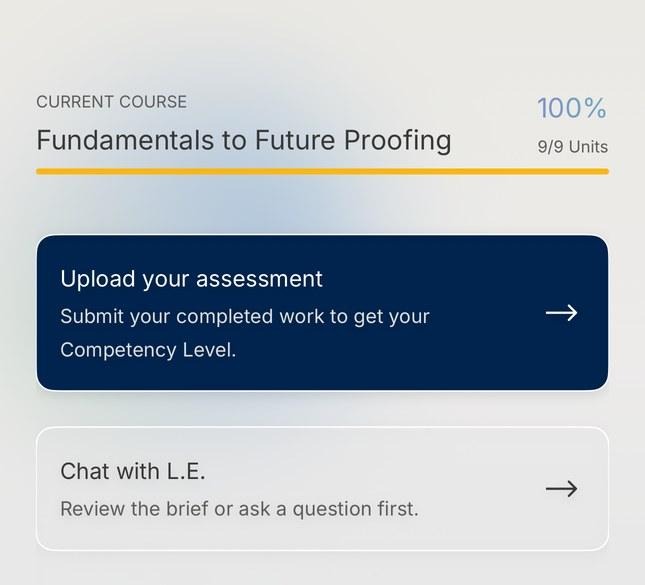
After the brief, your home screen shows Upload your assessment and Chat with L.E.
- On your home screen, tap Upload your assessment.
- Tap Choose file and pick your PDF.
- Check the selected file. If it’s the wrong one, tap Replace file to swap it.
- Tap Submit assessment.
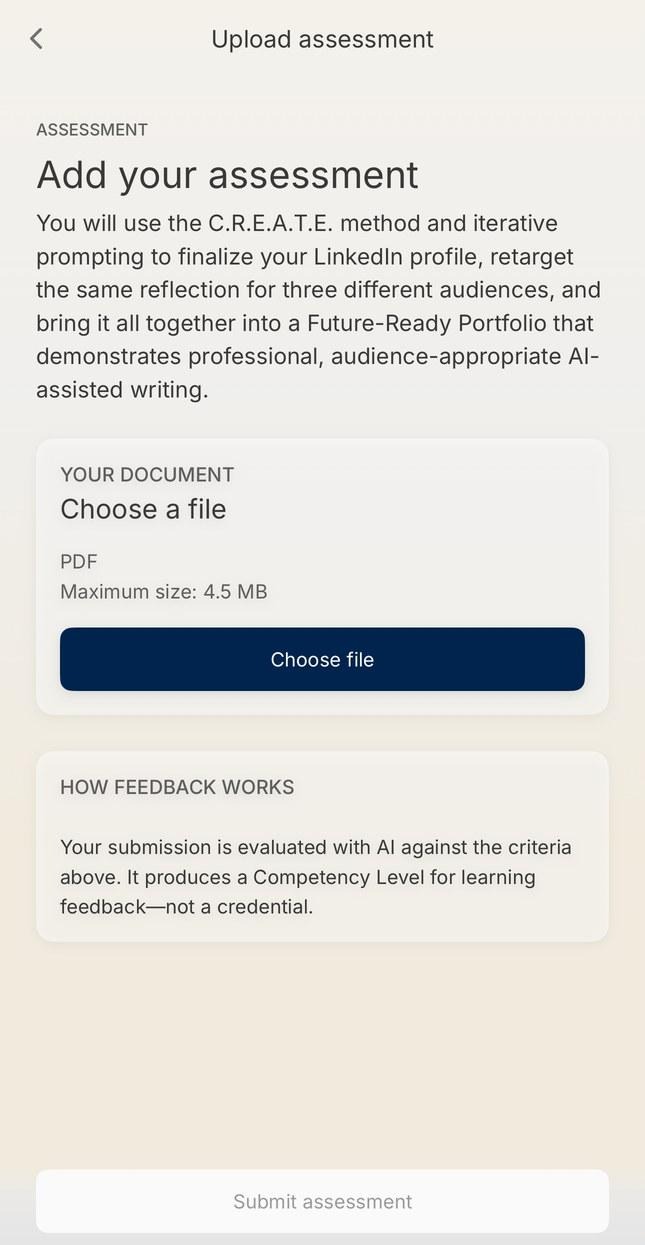
The upload screen shows the accepted format and maximum file size.
After you submit, you can leave the screen. Your work is evaluated in the background.
What if my upload doesn’t work?
The upload screen will tell you what went wrong:
- File type not supported: only PDFs can be uploaded. If you wrote your work in a Word document or Google Doc, save or export it as a PDF first.
- File too large: reduce the file size, for example by compressing large images, and upload it again.
- Upload didn’t go through: your work is still on your device. Check your connection and try again.