
Can I redo or resubmit my assessment?
No. Each assessment has one submission, and once your file is submitted it can’t be changed or replaced. Your feedback is yours to use in your future learning and your work.
Do I need to reach Foundational to pass?
There’s no pass or fail. Your course is complete whatever level you receive, and your Competency Level shows where you are on the scale. If you receive Developing, your feedback will show you exactly where to grow.
Can I use AI to complete my assessment?
Yes, using AI tools is the point. Each assessment asks you to use the tools and techniques from the course and to show how you used them. Where a task asks for your own words, such as a reflection, write it yourself.
Can L.E. help me write my assessment?
L.E. can explain what each task asks for and help you choose a setting from your own work, but it won’t complete tasks for you or show you how to do them.
Why are there so many tasks?
Because the assessment covers the whole course. Each task gives evidence of a different skill from the course’s units, so together they show everything you practiced. In Course 2, for example, the nine tasks assess eight of the course’s nine unit objectives.
The tasks aren’t separate assignments. They’re the steps of one project, in the order you’d actually do them, and they all come together in your single PDF. The record of how you worked, like your prompts and what you changed, is part of what’s assessed too.
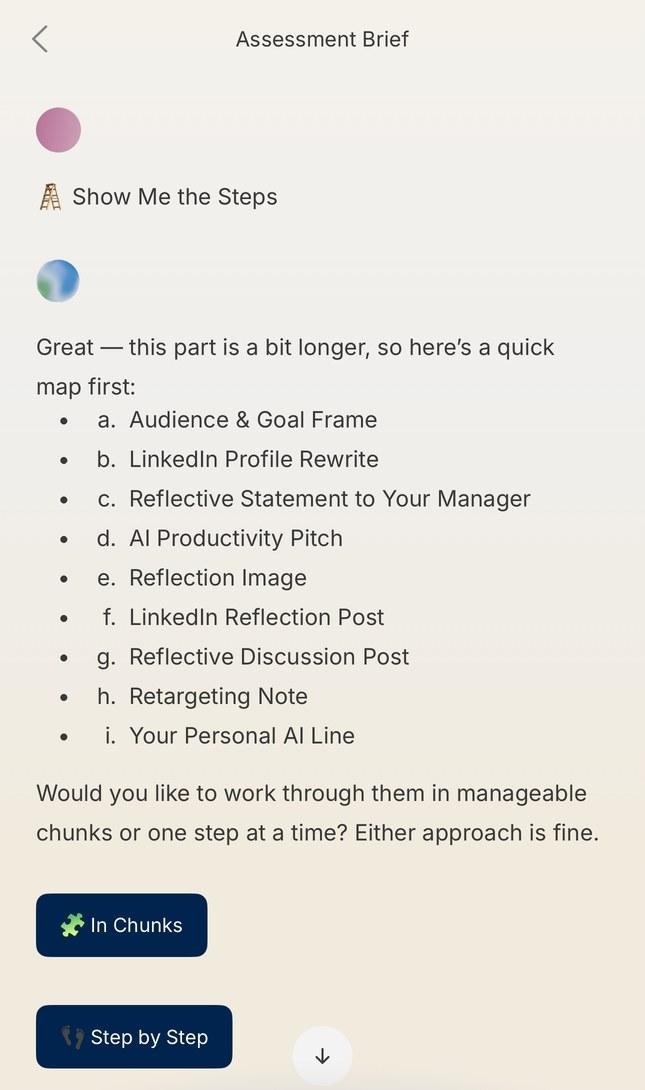
To make it easier to take in, L.E. shows you a quick map of all the tasks first, then goes through them in chunks or one step at a time. Use What to Submit as your checklist.
What’s the difference between In Chunks and Step by Step?
Both show you every task in full. In Chunks puts a few tasks in each message, so you get through them quickly. Step by Step shows one task per message, so you can take each one in and ask questions as you go.
How is the assessment connected to what I learned in the course?
Every assessment is built around the course’s learning objectives, and each task links to one or more of the units you completed. In Course 2, for example, the automation audit links to the unit on AI, automation and the workplace, and the two-model comparison links to the unit on comparing LLM-based AI tools. A course’s orientation unit usually isn’t assessed.
To see how your tasks line up, ask L.E. during the brief conversation, for example “Which unit does task 4 relate to?” or “How do these tasks connect to what I learned?” Your rubric’s topics are built around the same skills.
Can I upload a Word document, several files or a link?
No. You can upload one PDF only, up to 4.5 MB. Save or export your work as a PDF first. You can add links at the end as optional extras, but they aren’t graded.
How long does grading take?
Usually about 5 minutes. Your home screen shows Evaluating your submission until your result is ready. If it hasn’t changed after about 5 minutes, try closing and reopening the app to refresh your home screen.
Will I get a notification when my result is ready?
No. Check your home screen for Your assessment is graded.
Can I go back to the brief conversation after I upload?
No. Chat with L.E. is only available before you upload, so it’s best to ask questions about the assignment first. After grading, you can still ask about the assignment by tapping Get detailed feedback on your results screen.
Do I have to use the buttons in the chat?
No. The quick-reply buttons in the brief conversation and in the feedback conversation are there to save you typing, and you can type a reply or question at any time instead. The one exception is Continue at the end of the brief conversation, which you need to tap.
I finished the brief conversation, but I don’t see Upload your assessment. What should I do?
This usually means the brief conversation ended without Continue being tapped. Go through the brief conversation with L.E. again and tap Continue at the end. If the upload option still doesn’t appear, contact the MAS team at support@matterandspace.comor by filing a support ticket.
Where can I review the instructions while I work?
Any time before you upload, tap Chat with L.E. on your home screen and ask L.E. to walk you through any part of the assessment brief again, or to explain it a different way. You may find it helpful to note down the tasks and the What to Submit list as you go.
Is my result a certificate or credential?
No. Your Competency Level is learning feedback. It isn’t a credential, certificate or badge.
Who grades my work?
Anautomatic grading system, using the detailed rubric for your assessment. For the October Pilot, there is no human grading. If you have any concerns about your result, contact the MAS team.
Why doesn’t Course 1 have a summative assessment?
In the October 2026 pilot, summative assessments are offered in Courses 2 to 5 only.
My feedback describes something that isn’t in my work. What should I do?
Contact the MAS team at support@matterandspace.com or by filing a support ticket so they can check your result.
My result says my file couldn’t be read. What now?
This means there was a problem reading your file, so the result doesn’t reflect your work. Contact the MAS team at support@matterandspace.com or by filing a support ticket and they’ll look into it.
Why was I taken back to my Course 2 assessment?
If you moved past the end of Course 2 before summative assessments became available, you may be taken back to the Course 2 assessment when you next log in, even if you’ve already started a later course. You’ll need to complete it before you can continue. If you have trouble getting back to your learning afterward, contact the MAS team at support@matterandspace.com or by filing a support ticket.
Need more help?Before you upload, tap Chat with L.E. on your home screen for any question about what your assessment asks for. For anything else, or if this article didn’t answer your question, contact the MAS team at support@matterandspace.com or by filing a support ticket.