
Next Step - Log in and complete onboarding
Head to the next page for instructions on logging in to the LE-1 app and completing onboarding.
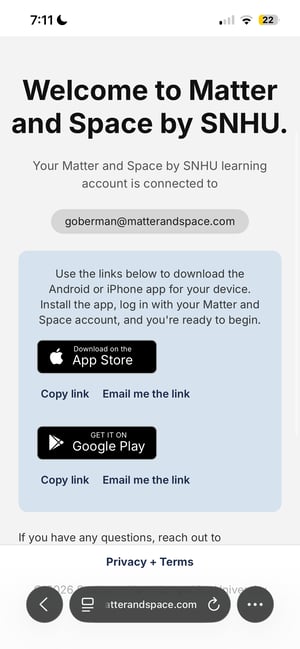
After activating your Matter and Space account, follow these steps to download and install the LE-1 Matter and Space app.
From the account activation page, press the button to Download the app from the App Store via the private listing.
You can also copy the link to the app, or email the link to yourself if needed.

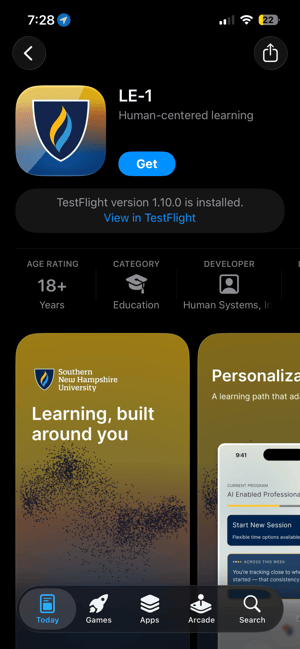
Once the page opens, click "Get" to download the app. Once it is installed, click "Open" to open the app.


Head to the next page for instructions on logging in to the LE-1 app and completing onboarding.
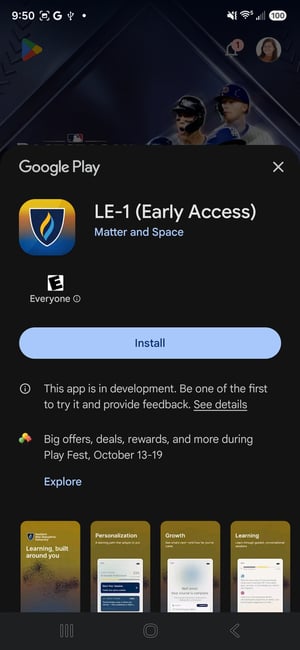
From the account activation page, press the button Get it on Google Play.
You can also copy the link to the app, or email the link to yourself if needed.

Once the page opens, click "Install" to download the app. Once it is installed, click "Open" to open the app.

Confirm that you have filled out the Google account gathering form to provide Matter and Space with your Google account information. If you haven't yet, please fill it out and send us an email at support@matterandspace.com to let us know.
If you have, move to step 2.
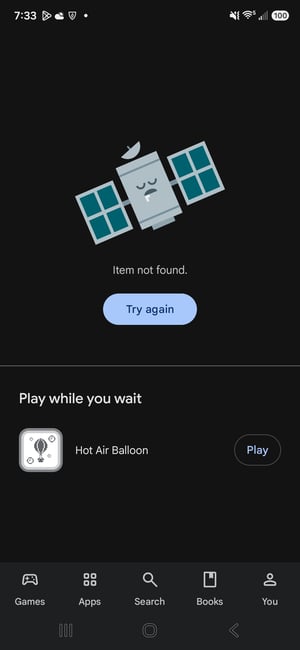
Confirm that the account you are using on the Play Store is the Google account you provided Matter and Space in the above form.
If it isn't, switch to the account you gave us by going to You > your profile picture > your profile info at the top > select the correct account from the dropdown. Try to access the link again.
If you have completed both previous steps and are still having trouble, send us an email at support@matterandspace.com with details about your issue and info about the Google account you were trying to access the app from.


Head to the next page for instructions on logging in to the LE-1 app and completing onboarding.