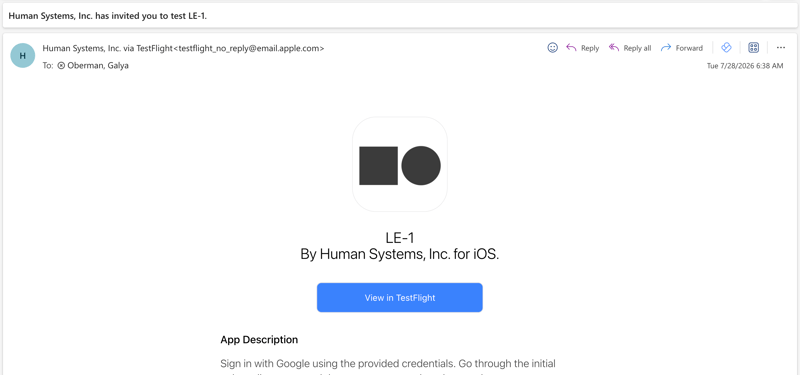
After downloading TestFlight, access the TestFlight invite you received via email. Look for the subject line: "Human Systems, Inc. has invited you to test LE-1." (Human Systems is our former legal name), and click the "View in TestFlight" button in the invite.
If you're not able to access your work email from your phone, you can always forward the invite to an email you can access from it.
If you're not able to forward the email, you can open the TestFlight invite email on your desktop, and then complete the process side-by-side on your phone.
Add the LE-1 app to your TestFlight
On your phone
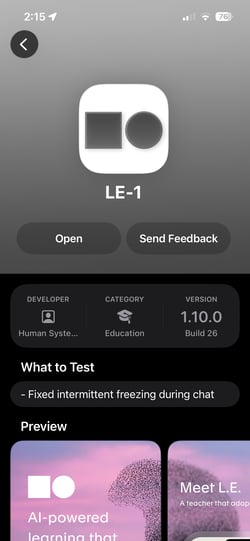
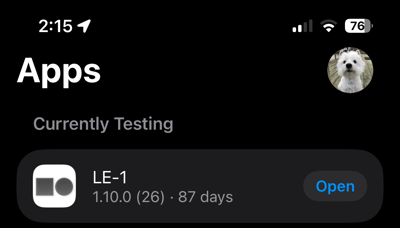
Clicking the link from your phone will open the LE-1 app invite in TestFlight, and will also automatically accept the invite to test the app. You will see the app in the list of testable apps from within TestFlight.
Side-by-side on desktop
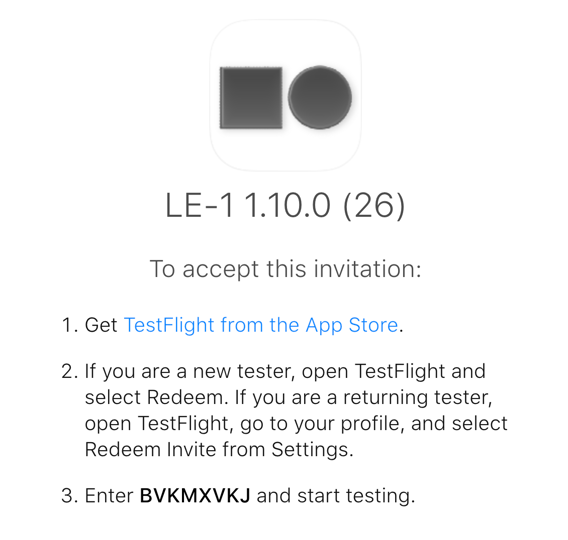
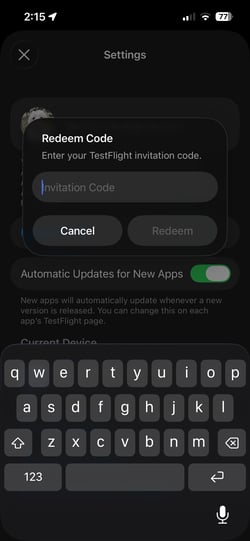
Clicking the link from your desktop will open a webpage that displays an invite code. Go to the TestFlight app > Tap your account photo > Redeem Invite, then enter the code on your screen.
 .
. 
Enable Automatic Updates
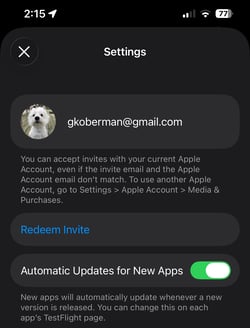
If you're not already on the Account Settings page, tap your account photo. On this page, toggle on "Automatic Updates for New Apps". This will ensure you receive any new updates we release whenever your phone is charging and also connected to wifi.
Once complete, exit the Settings page by pressing the X in the top left.
You can always manually install updates. You'll know there's an update available when the LE-1 app in TestFlight says "Update" instead of "Open".
Press Install, then Open
Press the LE-1 app, and then press "Install". You'll know it's successfully installed when the button changes to say "Open".
After the app is installed on your phone, you can also access it from your phone Home Screen.